Six weeks ago, I spoke to a global business marketing class at Texas A&M about AI. This week, I gave the same talk to a new group of students.
We covered a lot: AI agents, Grok bots, and connectors in Claude, which let you plug tools like email, SharePoint, and file storage directly into an AI system.
After the first session, the students gave me feedback that stuck with me. They said the connectors were really cool to see, but because no one had taught them how they work in the real world, it didn't fully click.
That got me thinking. I use connectors every day, so I thought most people knew about them. But many people don't know they exist, how they work, or what the security looks like. So this week, I'll walk you through connectors just like I did in class.
Another thing I noticed from those talks is that students today are entering a very different workforce than I did. When I started, being "good with software" meant knowing Excel and Word. Now, students are learning about agents and connectors in school. The good news is they're ready for it, and their professors are teaching these skills. The future of our workforce in AI, software, and product stewardship looks bright.
The question for us is whether our teams and systems will be ready for them.
What a Connector Actually Is
A connector is a bridge between an AI assistant and another tool you already use, like Outlook, SharePoint, Google Drive, or a CRM.
Most modern connectors use the Model Context Protocol (MCP), which is an open standard for how AI systems connect to other tools. It's like a USB port for AI, one standard plug that works with many devices.
Behind the scenes, a connector is a small server that gives the AI a list of specific actions it can take, such as:
- Search email
- Read a file
- List calendar events
- Create a draft
The AI can only do what's on that list, and nothing else.
What It's Actually Looking At
This is where many people get confused. A connector doesn't copy your entire inbox or file system into the AI.
Here's what happens when you ask a question:
You ask something like: "Find the latest SDS revision request from our customer."
The AI decides which action to call, such as "search email."
The connector runs that search using your permissions.
Only the results come back into the conversation.
Nothing is accessed until you ask for it, and the AI can't see anything you don't already have access to.
Security: What Product Stewards Should Know
This is where experienced stewards make a difference. Here’s what you need to know.
1. Authentication. Most connectors sign in through OAuth, the same "Sign in with Microsoft/Google" flow you already use. The AI never sees your password.
2. Scopes and permissions. When you connect a tool, you grant specific scopes. Read-only is very different from read and write. Know which one you're granting.
3. Admin control. On business and enterprise plans, IT usually manages connectors. If you don't see a connector or it's greyed out, it's probably a governance decision, not a bug. Your IT team might not approve every connector, and that's normal.
4. Action approvals. Many AI tools let you require approval before the AI does something, like sending an email or editing a record. It's best to keep this setting on, especially at first.
5. The real risks.
- Over-broad permissions: granting write access when you only need read.
- Unvetted third-party connectors: anyone can build an MCP server. Stick with official or IT-approved ones.
- Prompt injection: a harmful email or document can have hidden instructions designed to trick the AI. That's why approvals and read-only access are important.
Questions to Bring to Your IT Team
- Is this connector official, or built by a third party?
- Is it read-only, or read and write?
- What data sources does it touch?
- Does the AI vendor train on our data under our plan?
- Can we require approvals for actions?
- Who can turn it on, and can it be audited?
How to Use Connectors
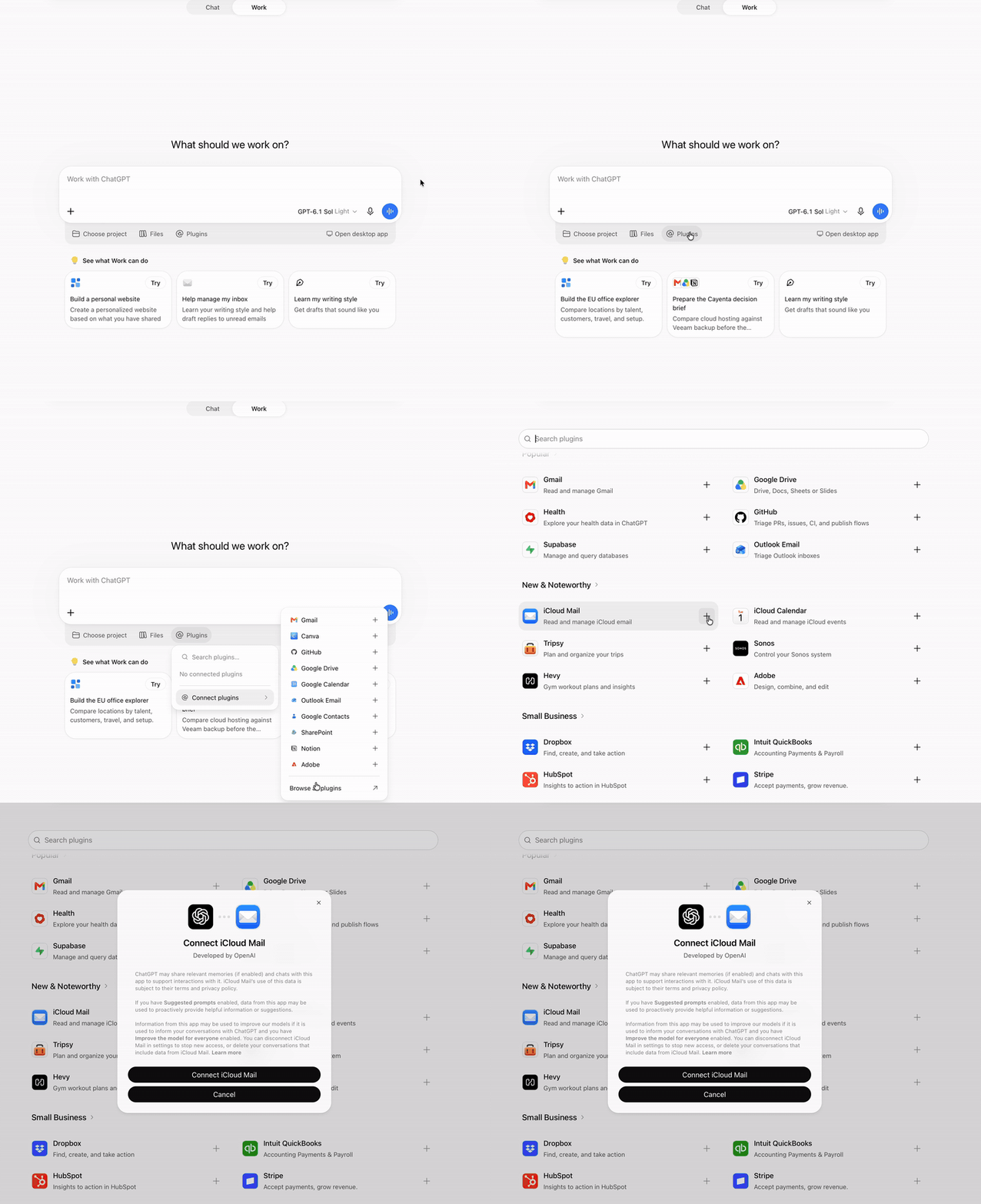
Connecting iCloud Mail as a plugin in ChatGPT. The setup looks much the same in Claude and other AI tools.
Once a connector is set up, you just ask in plain language. A few prompts to try:
- "Search my email from the last 30 days for any customer requests for updated SDSs and list them by customer."
- "Find the most recent version of our [product] SDS in SharePoint and summarize Sections 2 and 3."
- "Check my calendar and tell me which regulatory deadlines I have meetings scheduled around this month."
A safe way to begin is to connect one low-risk source, keep it read-only, and leave approvals turned on. You can add more once you feel comfortable.
AI News This Week
The real cost of AI agents is showing up. On November 1, a Grok Bot user asked Elon Musk to reset the weekly usage pool after limits ran out early. Musk replied that the cost of serving Grok Bot was "unsustainably high relative to revenue." That came less than two weeks after he called it the fastest-growing product he'd ever seen. (Forbes)
It's not just xAI. ChatGPT users are pushing back on OpenAI's new usage limits, with some calling it "the end of an era." (TechRadar)
Why this matters for stewards: agents handle a lot of tasks in the background, and that costs money. If you're planning a budget for AI tools, be ready for limits and prices to change.
Invisible watermarks are becoming standard. Starting November 7, xAI will add an invisible watermark to Grok API text output by default. (explainx.ai) Anthropic got there first: since August, text from newer Claude models carries an invisible watermark that survives copy and paste, driven by the EU AI Act's transparency rules. (TechCrunch)
One catch: you can't check for these watermarks yourself. There's no public detector for Claude's watermark. Detection is in a private preview for eligible organizations under EU law, such as regulators, law enforcement, media, fact-checkers, researchers, and educational organizations. (Claude Help Center) xAI hasn't said yet who will be able to detect Grok's watermark.
Why this matters for stewards: if AI writes parts of your SDSs, labels, or customer letters, assume that text can be identified as AI-generated. This is another reason to have a human expert review and approve the final document.
Where This Is Going
Today, most connectors plug AI into everyday tools like Outlook, SharePoint, and Google Drive. That's just the start.
Since MCP is an open standard, any software can have a connector. I expect most systems that product stewards use will follow, including SDS authoring tools, chemical inventory systems, ERPs, regulatory databases, and even open-source or in-house tools on your own servers.
This shifts the question from "What can AI do?" to "What can AI safely access?" The security basics above will become even more important as more of your systems connect.
Here's a practical tip: the next time you talk to a software vendor, ask if they have an MCP connector or plan to add one. Also, ask how it's secured.
Those students reminded me that tools only matter when someone shows you how they fit into your real work. If you try a connector this week, reply and let me know what you connected and what you asked it. I'll share the best use cases in a future issue.
See you next Thursday
Brett