There are a ton of regulatory websites I’m supposed to check every week, but there are plenty of reasons I don’t get to them. Usually, nothing changes. But when something does, it always seems to happen when I’m already swamped.
For 13 years, staying up to date with OSHA, EPA, Health Canada, and ECHA was just another aspect of my routine, like answering emails. I’d check them on Monday mornings, between meetings, or late at night when I realized I hadn’t looked in a while. Like many of you, I never really had a solid system, just some bookmarks and good intentions.
AI agents have been a game-changer here. Now, instead of trying to remember to check a bunch of sites, an agent checks them each week and gives us a short list of updates. We still read every article and click through to the source, but I don’t have to worry about forgetting anymore. We made that list into a free page anyone can use, and this week I’ll show you how to make your own version.
The shortcut: Reg News
If you just want the news, start here. Reg News is a free page we built at Valenc. It lists chemical regulation headlines from government agencies and trade publications in the US, Canada, the EU, the UK, and Mexico. Each item has a short neutral summary, the category of document it is, and a link to the source. A person on our team reviews every item before it’s posted, and you can filter by region, date, type, and topic.
https://www.valenc.com/tools/reg-news/
Want your own version, with the regions and topics you care about? Here’s how to build one.
First, what’s an AI agent?
A regular AI chat just answers your question and then stops. An AI agent, on the other hand, gets a task to do. It can handle several steps by itself, like opening websites, reading pages, comparing information, and giving you a final result.
Many AI tools can also do tasks on a schedule. You set it up once, choose when you want it to run, and it will do the job every week without you having to ask again.
Today I’m using a basic version of an AI agent: a scheduled task in ChatGPT. It works by itself, reads the pages, and puts together the list for you. More advanced agents can do even more, like clicking through websites, logging in, and taking actions in your other apps. For a news watch, you don’t need those extra features, and it’s safer to keep things simple. Still, there are many new agent tools available, and I’ve listed some of the most interesting ones at the end.
No matter which tool you choose, agents are great for repeat reading tasks like this. But they shouldn’t be used for compliance decisions, and you should never give them confidential formulas, customer data, or passwords.
Build it: a weekly news watch in ChatGPT
ChatGPT’s scheduled tasks need nothing installed and work on the free plan. Free accounts can have up to 3 active tasks, each running at most once a day, with a general time like “morning” instead of an exact time. Paid plans allow more tasks and exact times. Other tools that do the same thing are listed at the end.
Pick your sites. Start with public news pages that don’t need a login. Here’s a starting list. Add or remove sites to fit what you care about.
- US: OSHA news releases, the Federal Register search for “hazard communication,” and EPA’s chemicals under TSCA page
- US states: California’s Prop 65 notices and Minnesota’s PFAS in products page. Add the states you sell into.
- Canada: Canada Gazette, Part I, where proposed regulations are published
- EU: ECHA and the European Commission’s Single Market news
- UK: HSE’s media centre and its chemical classification (GB CLP) page
- Trade news: ISHN, EHS Today, and C&EN
The links are all in the prompt below. One heads up: some sites block automated visits even though they open fine in your browser. ECHA is a common one. The prompt asks the AI to list any site it couldn’t open, so you know to check those yourself.
Your job is a weekly regulatory news watch. Check these public pages for anything posted in the last 7 days: OSHA news releases (https://www.osha.gov/news/newsreleases); Federal Register "hazard communication" search (https://www.federalregister.gov/documents/search?conditions%5Bterm%5D=%22hazard+communication%22); EPA chemicals under TSCA (https://www.epa.gov/chemicals-under-tsca); California Prop 65 notices (https://oehha.ca.gov/proposition-65/notices); Minnesota PFAS in products (https://www.pca.state.mn.us/air-water-land-climate/reporting-pfas-in-products); Canada Gazette, Part I (https://gazette.gc.ca/rp-pr/p1/index-eng.html); ECHA (https://echa.europa.eu/home); European Commission Single Market news (https://single-market-economy.ec.europa.eu/news_en); UK HSE media centre (https://press.hse.gov.uk/); HSE chemical classification (https://www.hse.gov.uk/chemical-classification/index.htm); ISHN (https://www.ishn.com); EHS Today (https://www.ehstoday.com); and C&EN (https://cen.acs.org). Only include items about safety data sheets, hazard communication, GHS, WHMIS, CLP, REACH, TSCA, PFAS, chemical labeling, exposure limits, or dangerous goods transport. Skip single-company fines, injury stories, and staff news. For each item, give me: (1) a region tag: [US], [US state], [Canada], [EU], [UK], or [Global]; (2) the headline, as the source wrote it; (3) the date it was posted, or "date not shown" if the page doesn't show one, without guessing; (4) what kind of document it is: proposed rule, final rule, notice, guidance, or news; (5) any comment deadline or effective date the source states; (6) two neutral sentences in your own words on what was published, by whom, and what it covers; and (7) the direct link to the original page. Rules: Never copy article text. Write the two sentences yourself, and if a page is paywalled, give only the headline and the link. Only report what the source says, with no advice, no predictions, and nothing about what it means for my company. If the same news shows up on more than one site, list it once. If you couldn't open a site, list it at the end under "Couldn't open" and don't guess what it says. If nothing matches anywhere, reply only "Nothing new this week." Don't send, post, or share anything. Just give me the list. Keep the whole list short enough to read in five minutes.
Test the prompt once. Open a new chat in ChatGPT and paste the prompt below. Add one line at the end: “Do one run now so I can check the format.”
Put it on a weekly schedule. Once you like the results, open a new chat and paste this line, then the prompt (without the “Do one run now” line):
Every Monday morning, run this task and send me the results.
ChatGPT will confirm it created a task. To get alerts, go to Settings, then Notifications, and choose Push, Email, or both. To see, change, pause, or delete the task later, click Scheduled in the left sidebar.
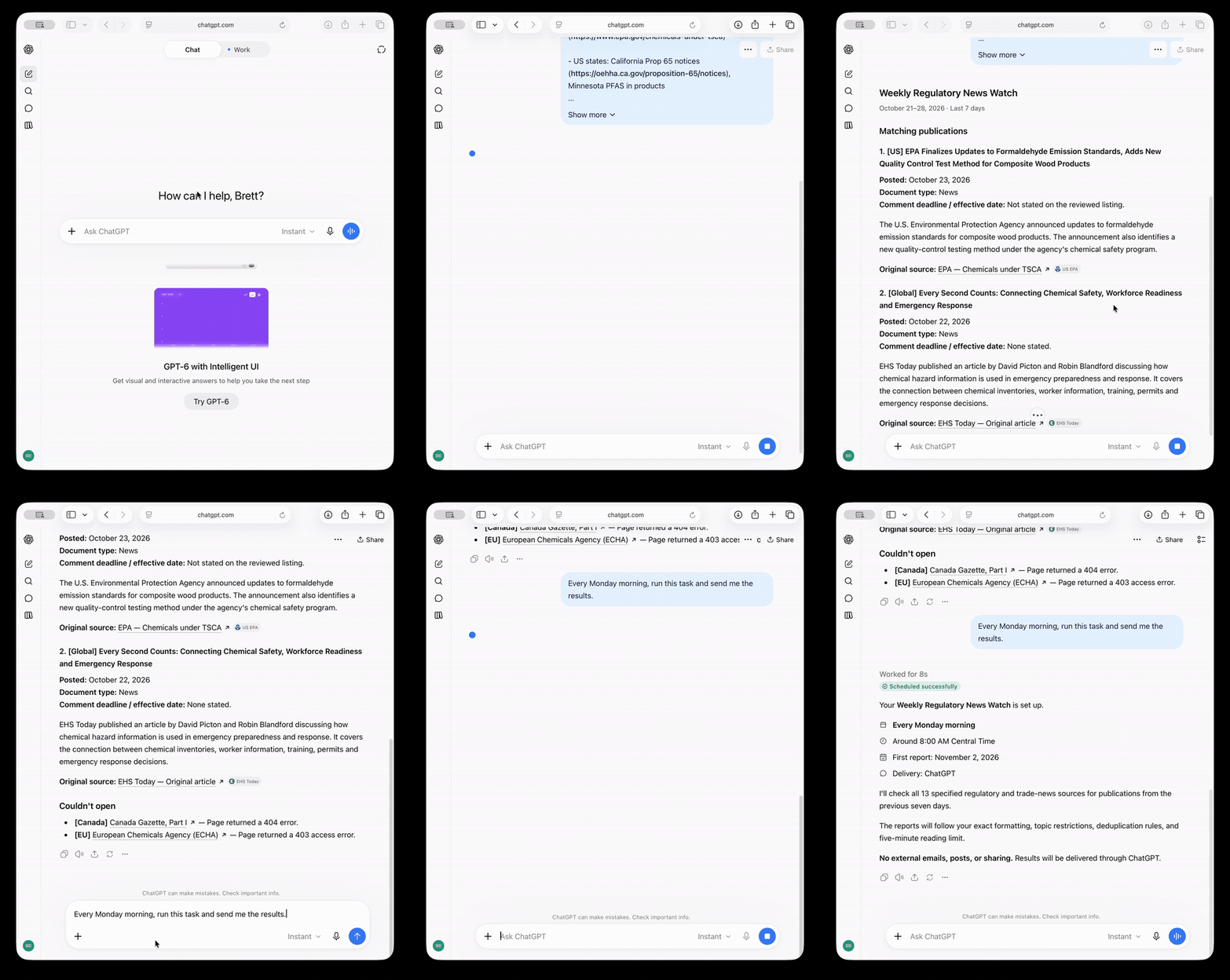
Review before you share. This task provides a reading list, not direct answers. Before you share anything with your team or customers, make sure to:
- Open the original source for each item you want to share. Check the date, agency, and rule name to make sure they match.
- If a summary doesn’t match the original, fix it or remove it. Sometimes AI gets details wrong or mixes up dates.
- If a site keeps appearing as “Couldn’t open,” take a moment to check it yourself.
- Only use public pages. Don’t share passwords or direct the task to anything that requires logging in.
- If you find something that changes a hazard or requirement for your products, have it reviewed by a trained person as you normally would.
This is just a reading list, not legal advice. The summaries come from AI and public pages, so they might be wrong or out of date.
Same job, other tools
You can use the same prompt in these other AI tools with a few small tweaks. Since plans can change quickly, make sure to double-check before relying on any of them.
- Microsoft Copilot: “Scheduled prompts” in Copilot Chat, Teams, or Outlook. Needs a Microsoft 365 Copilot license, often through your employer. If your company already uses Copilot, start here.
- Claude: “Scheduled tasks” in Claude Cowork, on paid plans.
- Gemini: “Schedules.” Type your prompt with when it should run, or click Scheduled in the sidebar.
- Grok: “Automations” on grok.com or the Grok app, with results by email or app notification.
The new wave of AI agents
These do more than just handle scheduled tasks. They keep working even when you’re not talking to them, can take actions in your apps, and will check with you before doing anything important. Most require a paid plan or a waitlist, and all of them are new. It’s best to try them out on personal or low-risk tasks before using them for your job.
- Grok Bot (xAI): These AI “teammates” work like coworkers you can message. Each has its own cloud computer, can read websites, and can run scheduled jobs even if your laptop is off. You’ll need a paid plan and the desktop app. https://x.ai/bot
- Claude Duet (Anthropic): Claude acts as a proactive assistant. It can send you a morning summary, highlight what needs your attention in your inbox and calendar, and draft replies for you to review. It’s designed for professionals and small business owners. Right now, it’s a research preview with a waitlist for US Claude Pro and Max subscribers. https://claude.com/resources/articles/claude-duet
- ChatGPT dots (OpenAI): OpenAI calls these “always-on agents.” You assign your dot a task, and it keeps working on it between chats, then brings you results to review and decisions to make. They’re rolling out on Pro, Business Premium, and Enterprise plans. https://chatgpt.com/features/dots/
- Muse (Meta): This is a personal agent you can message in the Muse app or on WhatsApp. It’s designed for daily tasks like email, travel, shopping, and helping you turn long-term goals into plans it keeps working on. It’s rolling out in the US. https://about.fb.com/news/2026/09/introducing-muse-personal-ai-agent/
AI news this week
Microsoft wants companies to pay more attention to AI agents. On October 19, Microsoft announced new security tools to monitor the AI agents employees use at work. These are tools that can take actions, not just answer questions. Microsoft says its tools can now detect 60 types of agents on work computers, including Claude Code and GitHub Copilot. Companies can also require a person to approve major actions before an agent does them. If your company is starting to use agents, check with IT to see what they can access and who approves their actions.
OpenAI has released a faster model for everyday tasks that makes fewer mistakes. On October 26, OpenAI launched GPT-6.1 Terra, a quick, lower-cost model for things like writing and filling out forms. What matters most is accuracy. In OpenAI’s own test with tricky questions, the error rate dropped from about 54% to 17% at the fastest setting, and to about 4% at the most careful setting. These are OpenAI’s numbers, and even 4% wrong can be a problem on an SDS. The model is now available in ChatGPT for Plus, Pro, Enterprise, and Edu users. Use it, but always double-check every line against the source.
https://openai.com/index/introducing-gpt-6-1-terra/
Pennsylvania will soon require labels on misleading AI ads. Governor Josh Shapiro signed the law on October 22, and it takes effect December 21. If an ad uses AI-made images, video, or audio to give a false impression about a product, it must clearly say so. Text-only ads, parody, and satire are exempt, and fines can be up to $3,000. If your marketing team uses AI images for product photos or brochures, it’s a good idea to talk about this.
https://thenextweb.com/news/pennsylvania-ai-ads-label-law-act-99
Reply and tell me what you’d like me to cover next.
See you next Thursday.
Brett Brewer